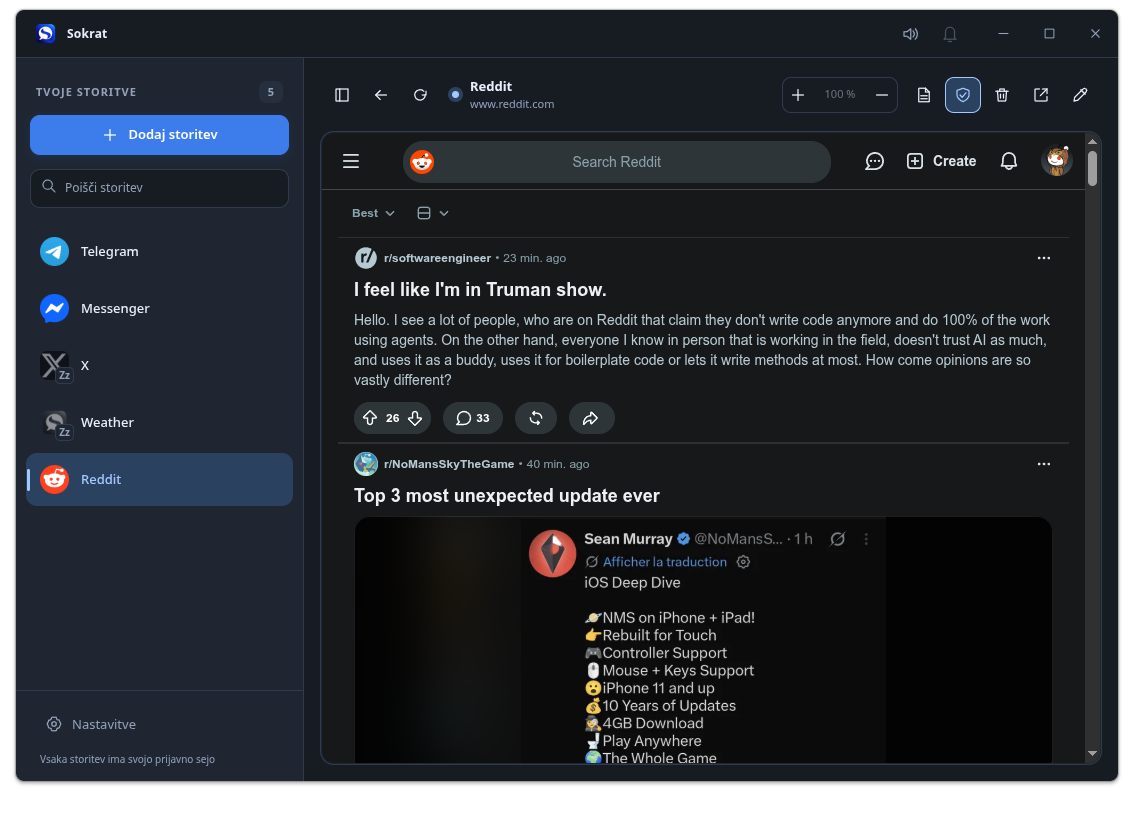
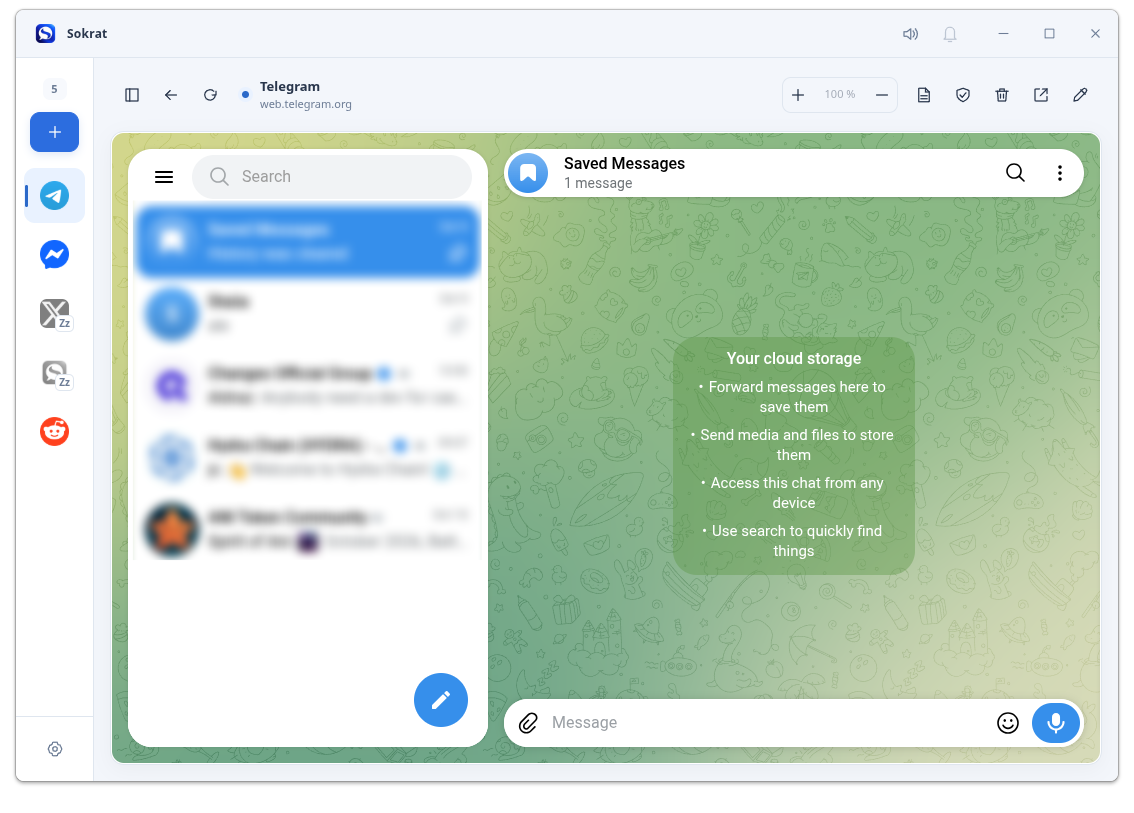
Features implemented in the current development version. Linux x86-64 has been tested; the other operating systems and architectures still require native testing.
Download Sokrat
Download the package for your operating system and processor: Linux AppImage, Windows portable EXE or macOS ZIP. Each includes the app and its runtime. Windows and macOS still require native testing.
Download SHA-256 checksums
In Settings, use Check for updates. Download the verified release, then choose Install and restart. Sokrat checks the SHA-256 checksum, replaces the permanent AppImage or EXE, and keeps the previous package as a backup. On macOS it replaces the extracted app. If the new application fails to start, the previous version is restored. Settings, browser profiles and shortcuts are preserved.
Packages are available as AppImage for Linux, one portable EXE for Windows and ZIP for macOS, on x86-64 and ARM64. Choose your operating system and processor. Windows and macOS packages still require native testing.
Linux: install system packages first
The AppImage includes Sokrat and Electron, but also uses system libraries. You need a graphical desktop, FUSE to open the package, GTK3 and its dependencies, NSS/NSPR, ALSA, Mesa/GBM and flock from util-linux. The commands below install the required packages; the package manager adds their dependencies and keeps packages that are already installed.
Debian 13 / Ubuntu 24.04+ (deb)
sudo apt update
sudo apt install fuse3 libfuse2t64 libgtk-3-0t64 libnss3 libnspr4 \
  libasound2t64 libgbm1 util-linux xdg-utils ca-certificates
Debian 12 / Ubuntu 22.04 (deb)
sudo apt update
sudo apt install fuse3 libfuse2 libgtk-3-0 libnss3 libnspr4 \
  libasound2 libgbm1 util-linux xdg-utils ca-certificates
Fedora (rpm)
sudo dnf install fuse fuse-libs gtk3 nss nspr alsa-lib cups-libs \
  mesa-libgbm util-linux xdg-utils ca-certificates
Solus (eopkg)
sudo eopkg install fuse2 libgtk-3 libnss libnspr alsa-lib \
  mesalib util-linux xdg-utils ca-certs
Most of these libraries are already installed on a normal desktop, so often only FUSE support is missing. On Solus, fuse2 provides this support for AppImage; the fuse package contains FUSE 3. On newer Debian/Ubuntu, use libfuse2t64 alongside fuse3. In Distrobox, install the packages inside the container where you run Sokrat. Packages do not replace a graphical desktop or graphics and audio drivers. Launching has been checked on Solus and Ubuntu in Distrobox; the Debian and Fedora commands use package names from official repositories.
Start the package. Create shortcuts.
Choose the package for your operating system and processor. On Linux, make the AppImage executable; on Windows, open the portable EXE. The first launch prepares a permanent copy and runtime in your home directory, without an administrator installation. On macOS, extract the ZIP into a permanent writable folder and open Sokrat.app. The commands below create shortcuts and then exit. The Linux and Windows examples use x86-64; for ARM64, replace x64 with arm64 in the filename.
Linux (AppImage)
chmod +x "/path/to/sokrat-linux-x64.AppImage"
"/path/to/sokrat-linux-x64.AppImage" --install
Windows (EXE, PowerShell)
& "C:\Downloads\sokrat-win32-x64.exe" --install
macOS (ZIP)
open "/Users/yourname/Apps/Sokrat.app" --args --install
The --install option creates desktop and application-menu shortcuts on Linux and Windows. They point to the permanent copy, so moving or deleting the original download does not break them. Open Sokrat from the new shortcut after the command finishes. On macOS, --install links the extracted app on the desktop and in your Applications folder; run it again if you move the app.
Start Sokrat
Use the desktop or application-menu shortcut. The permanent Linux launcher can also be started with:
"$HOME/.sokrat/electron/application/sokrat.AppImage"
If Sokrat fails to start on Linux with a Chromium sandbox error (for example on some Ubuntu systems), try adding --no-sandbox after the AppImage path. If this works, edit your desktop and application-menu shortcuts and add --no-sandbox after the quoted AppImage path in the command (Exec line), before any %U or %F placeholder. Use this option only when needed: it disables Chromium's sandbox protection.
"$HOME/.sokrat/electron/application/sokrat.AppImage" --no-sandbox
Start automatically at sign-in
Automatic startup is optional and is not enabled by --install. Always use the permanent launcher or the shortcut created by --install. Updates keep that path.
Linux
After running --install, copy the Sokrat.desktop shortcut from your application menu folder into your autostart folder. The command below uses your configured XDG folders or their defaults.
mkdir -p "${XDG_CONFIG_HOME:-$HOME/.config}/autostart"
cp "${XDG_DATA_HOME:-$HOME/.local/share}/applications/Sokrat.desktop" "${XDG_CONFIG_HOME:-$HOME/.config}/autostart/Sokrat.desktop"
Windows
After running --install, press Win+R, enter shell:startup and copy the Sokrat shortcut from your desktop into the opened folder. Its target is the permanent EXE in your user profile.
Sokrat is still in development. Service behaviour depends on the individual websites, and compatibility is still being tested. Shield protection is optional and off by default. Turn it off for a service if it interferes with the website.
 Sokrat