Sokrat.

Inspired by Socrates. Stay curious. Keep exploring.

Development version: 0.1.36

YOUR DIGITAL WORLD, TOGETHER

Less switching.
More focus.

Your chats, communities and everyday web tools, together in one desktop app. Switch services from the sidebar and keep each service instance signed in separately.

Download Sokrat
ONE APP, LIGHT AND DARK
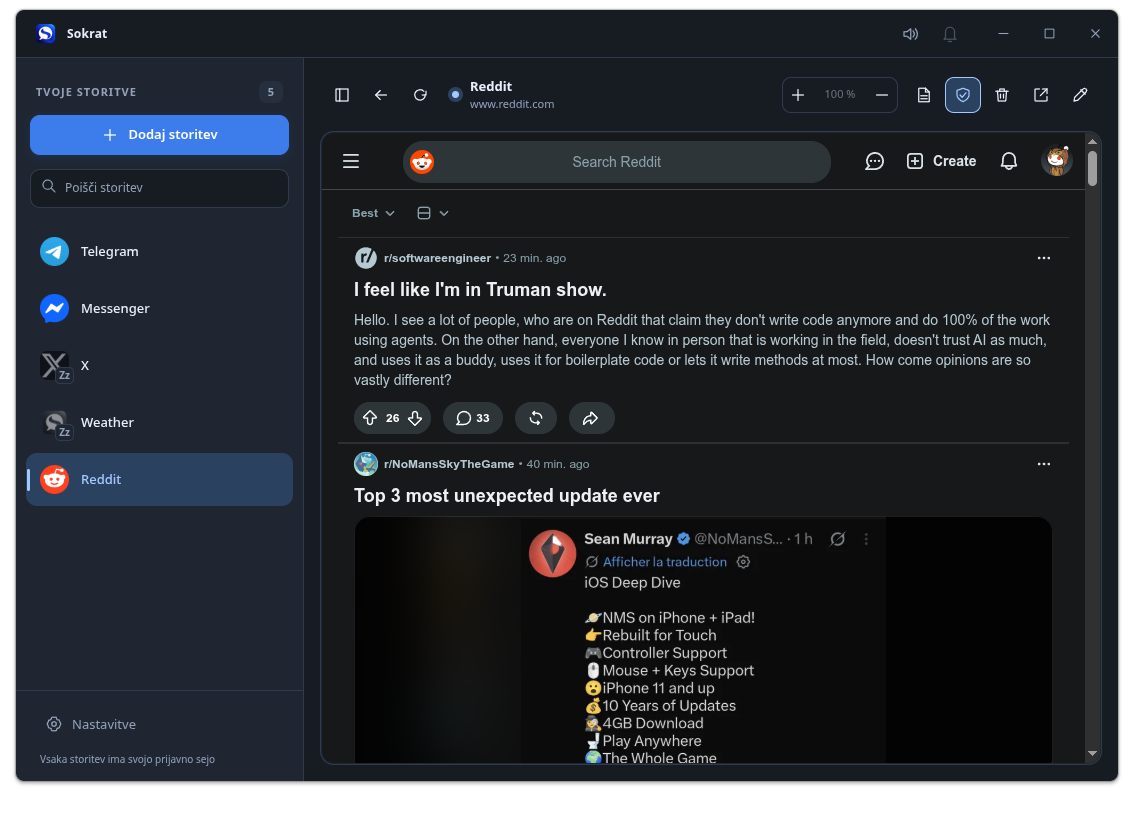
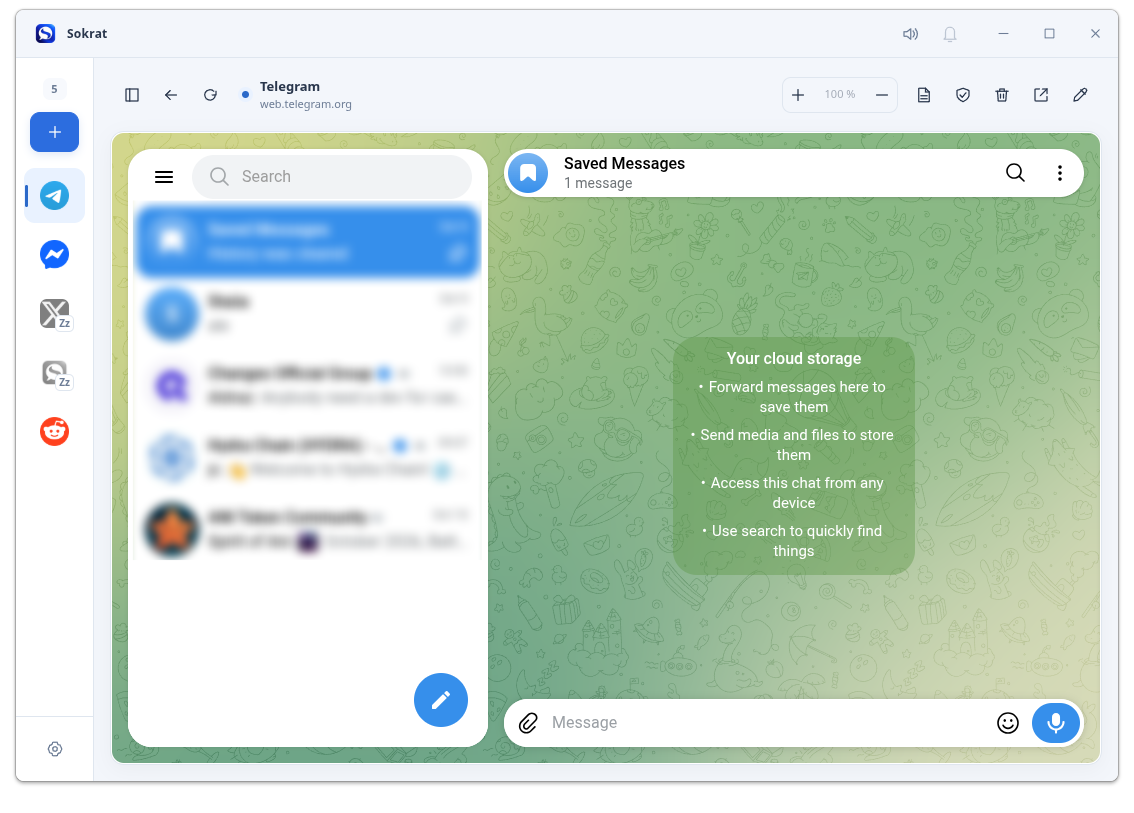
Sokrat in dark mode with Reddit and the expanded service sidebar Sokrat in light mode with Telegram and the icons-only sidebar
Chats and web tools together Separate service accounts A sidebar that fits you

DEVELOPMENT PROGRESS

What Sokrat can do today.

Features implemented in the current development version. Linux x86-64 has been tested; the other operating systems and architectures still require native testing.

Your services, in one desktop app

Sokrat brings messaging and web tools into one desktop app. Switch between services in the sidebar, navigate back, reload a service, clear its cache or open it in your regular browser.

An optional shield for each service

Use the shield button to enable protection for the selected service instance. It helps block ads and trackers and reduces browser fingerprinting. Protection is off by default because it can interfere with sign-in, content or other website features. If a service stops working correctly, turn its shield off. Each instance remembers its own choice, and changing it reloads the service. Protection does not guarantee anonymity or block every ad or tracking method.

Zoom and find text within a page

Zoom in or out on the current service, or reset to 100%. Each service instance remembers its zoom level. Search for text within the loaded page, see the match count and move between matches.

Export loaded content to PDF

Save the currently loaded service content as a PDF using the toolbar button. Choose where to save the file. The result depends on the website and the content it has loaded; it may differ from the on-screen view.

A built-in provider catalogue

Add services from the built-in provider catalogue, or define your own provider. Provider definitions can be edited or removed, and the default catalogue can be restored in Settings.

Custom websites and named instances

Add a custom website with a name and URL, or add multiple instances of the same provider. Each instance has its own persistent browser profile, so accounts and sign-in sessions remain separate. Editing and removing instances are individual actions; removal asks for confirmation. Removing an instance leaves its browser profile on disk.

A sidebar that fits your workflow

Find your added services using the sidebar search. Reorder them by dragging, choose an expanded sidebar, icons only or a hidden sidebar, and adjust its width in Settings. Your order and last selected service are saved.

Activity indicators with per-service control

Unread indicators appear beside services and in the tray icon. Notifications can play a sound and appear on the desktop. Choose a global or per-service sound, adjust the volume, mute sounds or ignore signals for an individual service. Detection depends on how each website reports activity.

Optional sleep for inactive services

Allow an inactive service to sleep to release its browser. Selecting it again loads the service using its saved profile. Sleeping services cannot receive new activity signals until reopened. Keep a service awake when you need it to run in the background.

Light and dark appearance

Switch between light and dark themes for the desktop interface, including the sidebar, controls and provider chooser. The selected appearance is saved. Embedded websites still control their own content and may have separate appearance settings.

Slovenian and English interface

The desktop interface defaults to Slovenian, with English as the fallback. Change and save your language in Settings. This website is available in Slovenian and English.

Tray integration and one running instance

Closing the main window keeps Sokrat running in the tray where supported. The tray menu can show the window, open services, control sound, clear pending signals or quit the app. Starting Sokrat again brings the existing instance forward.

A setup that survives restarts

Your added service instances, their order, activity and sleep preferences, shield choices, zoom levels, language and theme are stored locally. Sokrat also saves the sidebar layout, window size, maximized state and last selected service, allowing the next session to return to your chosen setup.

Portable installation and manual updates

Run --install from the AppImage, portable EXE or extracted macOS app to create shortcuts. Check for updates in Settings, download a verified release and install it with a restart. Updates preserve your settings and browser profiles.

Download Sokrat

Download the package for your operating system and processor: Linux AppImage, Windows portable EXE or macOS ZIP. Each includes the app and its runtime. Windows and macOS still require native testing.

Download SHA-256 checksums

In Settings, use Check for updates. Download the verified release, then choose Install and restart. Sokrat checks the SHA-256 checksum, replaces the permanent AppImage or EXE, and keeps the previous package as a backup. On macOS it replaces the extracted app. If the new application fails to start, the previous version is restored. Settings, browser profiles and shortcuts are preserved.

Platforms & requirements

Packages are available as AppImage for Linux, one portable EXE for Windows and ZIP for macOS, on x86-64 and ARM64. Choose your operating system and processor. Windows and macOS packages still require native testing.

Linux

Requires a graphical desktop, Electron system libraries, FUSE and flock. Make the AppImage executable and open it; its contents are reused from a persistent folder.

Windows

Open the portable EXE. It prepares its runtime in a persistent folder. PowerShell applies updates after the application exits.

macOS

Extract the ZIP and open Sokrat.app. These development packages are unsigned and are not notarized.

Connectivity and local storage

Each package includes the app and its browser runtime. Internet access is needed for web services. Settings and browser profiles are stored locally inside your home directory.

Linux: install system packages first

The AppImage includes Sokrat and Electron, but also uses system libraries. You need a graphical desktop, FUSE to open the package, GTK3 and its dependencies, NSS/NSPR, ALSA, Mesa/GBM and flock from util-linux. The commands below install the required packages; the package manager adds their dependencies and keeps packages that are already installed.

Debian 13 / Ubuntu 24.04+ (deb)

sudo apt update
sudo apt install fuse3 libfuse2t64 libgtk-3-0t64 libnss3 libnspr4 \
  libasound2t64 libgbm1 util-linux xdg-utils ca-certificates

Debian 12 / Ubuntu 22.04 (deb)

sudo apt update
sudo apt install fuse3 libfuse2 libgtk-3-0 libnss3 libnspr4 \
  libasound2 libgbm1 util-linux xdg-utils ca-certificates

Fedora (rpm)

sudo dnf install fuse fuse-libs gtk3 nss nspr alsa-lib cups-libs \
  mesa-libgbm util-linux xdg-utils ca-certificates

Solus (eopkg)

sudo eopkg install fuse2 libgtk-3 libnss libnspr alsa-lib \
  mesalib util-linux xdg-utils ca-certs

Most of these libraries are already installed on a normal desktop, so often only FUSE support is missing. On Solus, fuse2 provides this support for AppImage; the fuse package contains FUSE 3. On newer Debian/Ubuntu, use libfuse2t64 alongside fuse3. In Distrobox, install the packages inside the container where you run Sokrat. Packages do not replace a graphical desktop or graphics and audio drivers. Launching has been checked on Solus and Ubuntu in Distrobox; the Debian and Fedora commands use package names from official repositories.

Start the package. Create shortcuts.

Choose the package for your operating system and processor. On Linux, make the AppImage executable; on Windows, open the portable EXE. The first launch prepares a permanent copy and runtime in your home directory, without an administrator installation. On macOS, extract the ZIP into a permanent writable folder and open Sokrat.app. The commands below create shortcuts and then exit. The Linux and Windows examples use x86-64; for ARM64, replace x64 with arm64 in the filename.

Linux (AppImage)

chmod +x "/path/to/sokrat-linux-x64.AppImage"
"/path/to/sokrat-linux-x64.AppImage" --install

Windows (EXE, PowerShell)

& "C:\Downloads\sokrat-win32-x64.exe" --install

macOS (ZIP)

open "/Users/yourname/Apps/Sokrat.app" --args --install

The --install option creates desktop and application-menu shortcuts on Linux and Windows. They point to the permanent copy, so moving or deleting the original download does not break them. Open Sokrat from the new shortcut after the command finishes. On macOS, --install links the extracted app on the desktop and in your Applications folder; run it again if you move the app.

Start Sokrat

Use the desktop or application-menu shortcut. The permanent Linux launcher can also be started with:

"$HOME/.sokrat/electron/application/sokrat.AppImage"

If Sokrat fails to start on Linux with a Chromium sandbox error (for example on some Ubuntu systems), try adding --no-sandbox after the AppImage path. If this works, edit your desktop and application-menu shortcuts and add --no-sandbox after the quoted AppImage path in the command (Exec line), before any %U or %F placeholder. Use this option only when needed: it disables Chromium's sandbox protection.

"$HOME/.sokrat/electron/application/sokrat.AppImage" --no-sandbox

Start automatically at sign-in

Automatic startup is optional and is not enabled by --install. Always use the permanent launcher or the shortcut created by --install. Updates keep that path.

Linux

After running --install, copy the Sokrat.desktop shortcut from your application menu folder into your autostart folder. The command below uses your configured XDG folders or their defaults.

mkdir -p "${XDG_CONFIG_HOME:-$HOME/.config}/autostart"
cp "${XDG_DATA_HOME:-$HOME/.local/share}/applications/Sokrat.desktop" "${XDG_CONFIG_HOME:-$HOME/.config}/autostart/Sokrat.desktop"

Windows

After running --install, press Win+R, enter shell:startup and copy the Sokrat shortcut from your desktop into the opened folder. Its target is the permanent EXE in your user profile.

Sokrat is still in development. Service behaviour depends on the individual websites, and compatibility is still being tested. Shield protection is optional and off by default. Turn it off for a service if it interferes with the website.

CONTACT

Send us a question.

We’d be happy to hear from you. Send us a message and we’ll get back to you.

Prefer email without reCAPTCHA? Write to barko@generacija.si

· Google Privacy Policy · Google Terms of Service

A LOOK INSIDE SOKRAT

YOUR PRIVACY

Privacy & cookies

Browsing this website

This website does not use analytics, advertising cookies or application sessions. Without a saved language choice, it displays Slovenian when Slovenian is among your browser languages; otherwise it displays English. Clicking a language flag stores your choice in the first-party sokrat_language cookie for one year. This cookie only remembers your language and is not used for tracking. You can change your choice using the flags or delete the cookie in your browser settings. Viewing screenshots and downloading Sokrat do not require reCAPTCHA.

Contact form and reCAPTCHA

Google reCAPTCHA is loaded only after you tick the permission checkbox and submit the contact form. It protects the form against automated spam and may process your IP address, browser information and interaction data. Google documents the _GRECAPTCHA cookie for risk analysis. We load it through recaptcha.net to reduce exposure to unrelated Google cookies. Google resources are still involved; this does not make reCAPTCHA cookie-free.

Your choice

You can browse this website without allowing reCAPTCHA. If you do not want to load it, send your question using the email link. Blocking its cookies or scripts may prevent the contact form from sending. Permission is not saved across page loads. Once loaded, reCAPTCHA remains active for the rest of this page visit. Its cookies may remain afterwards and can be cleared using your browser settings.

Messages and external links

When you send a message, your name, email address and message are delivered by email to BArko and used to respond to your enquiry. The form asks for your permission to use these details for that purpose. You can withdraw this permission or request deletion by writing to the contact email below. Withdrawal does not affect the lawfulness of processing carried out before it. Do not include sensitive information you do not need to share. The donation link opens PayPal only when clicked; PayPal applies its own privacy and cookie policies.

Google Privacy Policy · Google Terms of Service

For privacy questions or requests concerning your message, contact barko@generacija.si